Google
Showing posts with label Exchange 2003. Show all posts

Thursday, December 27, 2007

Mailbox is empty - but ESM still shows size & count…

In last couple of months I have encountered couple of problem with same symptoms and heard a lot problem in newsgroups also.


Let’s consider the symptoms first:

• In the Exchange System Manager you have a Mailbox that says that it has 33 items and is a total size of 42,008 KB


• User has cleared down all their e-mail in the Inbox, Sent Items, Deleted items so they have a almost empty mailbox, but the Exchange System manager still claims that the mailbox contains items and those items amount to several Megabytes in size.


Some of the guys assume that mailbox is corrupted so delete it and re-create the exchange attributes with fresh mailbox to solve this issue, but we can go through below solution.


Solution Steps:

• Try to move mailbox from one Mailbox Store to another and check if you can see the location of any hidden item. Location might be Root, Inbox, Calendar etc…


• From the Microsoft Exchange web-site you will need to download the “Microsoft Exchange Server MAPI Editor” – to a machine where Outlook installed.


Note: Before we begin I have to tell you the fact that MAPI Editor is a pretty dangerous tool, it should be used with care and any small misuse could result in the loss of data or a mailbox being completely unreadable – take care and as always ensure that you have a working backup.


Configure outlook profile with the affected user’s mailbox.

Double click on the MFCMAPI.exe file and you will be having following screen:


Click on the OK button then go to the “SESSION” menu and select “Logon and Display Store Table”;


This will bring a pop-up for MAPI profile selection box (only if you have multiple MAPI profiles configured in machine);


Choose the correct profile from the list – or if you do not get the profile selection tab then proceed to the next stage

The MAPI Editor screen will change to look like the following;


You will need to double click on the item entitled “Mailbox – <<>>" and a new Window will open which looks like the following (you will have to expand the item called the “Root Container”):


Double click on the option in the left hand tree entitled “Top of Information Store” – following Window will be opened:

As you can see, in the top plane you can see all of the items that appear to be missing:

You can select all the messages above and export them to EML files, go to the “ACTIONS” menu and choosing the “SAVE TO FILE”


Then you can go to the “Actions” menu and choose the “DELETE MESSAGES” option – this will prompt you with the following question:


Choose the “Permanent delete passing DELETE_HARD_DELETE (unrecoverable)” option – this will ensure that the items have been fully removed from the Information Store.


When you have deleted all hidden mails, close down the MAPI editor.

Final View in ESM:

Refresh the view and you will have below view in ESM


Mystery solved!

Sunday, May 27, 2007

Delete Corrupted Out Of Office Rule with MFCMapi

This article will help to delete corrupted out of office rule from you mailbox but you should have some knowledge of MFCMapi.

Download MFCMapi

Go through below steps to remove the OOO rule

Steps :

· Start MAPI Editor.

· In the Mailbox window, you will see the Mailbox and Public folders instances listed in the Display Name column. Note : If there are multiple entries here then there could be several personal folder files (.pst files) added to your outlook profile. If you are not sure which file is the default delivery store, look in the PR_DEFAULT_STORE column. if there is a True in the column then file is the default delivery store.

· Double-click the mailbox in the list and it should opens in a separate window.

· Expand the root container. Then you can see such as IPM_SUBTREE, Common Views, Shortcuts, and so on. ( This list is available if you are using Exchange Server 2003 and Outlook 2003)

· You have to expand IPM_SUBTREE then you will see the folders such as Inbox, Outbox, Sent Items, and whatever you created

· Right-click the Inbox folder and then click Open Associated Contents Table (This is the list of “hidden messages" of the Inbox).

· Look for items whose message class is IPM.Note.Rules.OofTemplate.Microsoft and then click Delete.

· It will ask to move the Out Of Office rule to Deleted Items folder, or permanently delete them. After old out-of-office messages are deleted, new messages should be created automatically by Outlook.

Hope this will be useful for you.

Monday, April 16, 2007

Eseutil Notes

If you have ever experience issues with your Exchange Information Store not starting or misbehaving you would have most likely to use Eseutil. Take care while running this command with incorrect switch.

Eseutil Function:
Eseutil.exe can be used to analyze or verify, modify & repair your exchange Information Store database files.

Exchange 2007: Eseutil can be used to perform these tasks against the ESE database files on the Exchange 2007 Edge Transport and Hub Transport server for the mailbox and public folder stores only with the Exchange 2007 version of eseutil.

Eseutil Switches :
Defragment /d [options]
Recovery /r [options]
Integrity /g [options]
Checksum /k [options]
Repair /p [options]
File Dump /m[mode-modifier]
Copy File /y [options]
Restore /c [mode-modifier] [options]

Before using Eseutil Microsoft recommend following points.

  • Eseutil can be used on offline information stores only.
  • Run eseutil on one ESE database at a time
  • Make sure you have a copy of all the files for stores (including logs, chk files etc...)

Eseutil /d Defragment (Offline Defragmentation)

This switch is same like disk defragment, it will arrange the data in the beginning of database and rebuild the index, but it removes empty pages in the database file.

This procedure is commonly known as the offline defragmentation because the information store database will be offline when we do the defragmentation while the regular nightly online defragmentation (maintenance) that occurs when the information store is online.

  • In general avoid using eseutil /d switches unless, you removed/moved a lot of mailboxes from an Exchange database file or in second case there are -1018 errors in your event logs.

  • To see how much free space you have in an Exchange Database file just check in the event logs and look for recent occurrences of event 1221 or run eseutil /ms (database should be offline during this switch)

Before using Eseutil /d - Microsoft recommend following points.

  • Make sure before running eseutil /d that you should have at least 110% of the database files size available in free disk space on volume where defragmented copy of the database file is being created.

  • Microsoft does not recommend running Eseutil /d as a regular maintenance practice, as the online maintenance takes care of this. Exchange database should be in consistent state while you run eseutil /d on it.

The additional options for Eseutil /d command are as follows:

Note none of these additional options are required
/s - set streaming file name (default: NONE)
/t - set temp. Database name (default: TEMPDFRG*.EDB)
/f - set temp. Streaming file name (default: TEMPDFRG*.STM)
/I - do not defragment streaming file
/p - preserve temporary database (ie. don't instate)
/b - make backup copy under the specified name
/8 - set 8k database page size (default: auto-detect)
/o - suppress logo


Example :

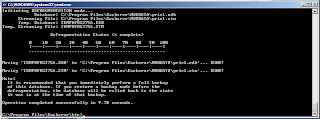
eseutil.exe /d "C:\Program Files\Exchsrvr\MDBDATA\priv1.edb" /s "C:\Program Files\Exchsrvr\MDBDATA\priv1.stm"

Exchange Message Limits Settings ( 5 Ways )

There are 5 different ways to limit message sizes in exchange.

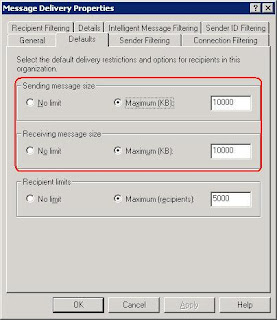
Global Settings

This is the easiest thing to do, set the message size limit with a global setting that applies to all users.

Open up Exchange System Manager and go to Global Settings Message Delivery and right-click to open the properties. Click on the Defaults tab and enter the default size limits.

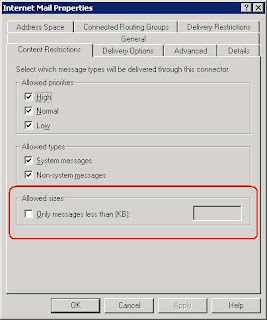
Connector Properties

Connectors are used to connect Exchange server to remote mail servers. When you send a message to a user outside of your organization it goes through a connector. You can limit the size of a message that goes through a connector.

Open up to connectors properties and on the Content Restrictions tab you can specify to allow Only messages less than (KB).

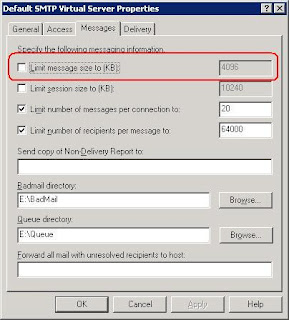
Virtual SMTP Server

Connectors only apply to outgoing mail, to limit incoming mail you can set a limit on the virtual SMTP server.
Open up ESM and go to Servers Server name Protocols SMTP and right-click on the SMTP virtual server and choose Properties; click on the Messages tab. Here you can set to limit message size to (KB).


Distribution List

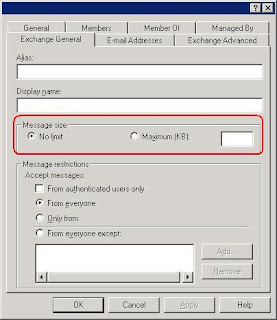
When creating, or editing a Distribution List, you can specify a limit for a message size sent to members of the group.
On the Exchange General tab of the groups properties, you can set the message size limit.

Mailbox Properties

On the user level, open up the user account properties and select the Exchange General tab. Click on Delivery Restrictions and set limits here too.

DSAccess Component in Exchange

Prior to Exchagne 2000, Exchange had its own "directory service". When Exchange switched to storing Exchange data in Active Directory Microsoft needed a way for Exchange to communicate with Active Directory. From this need DSAccess was created to regulate traffic between Exchange 2000/2003 and Active Directory.

DSAccess is an API that is used by Exchange to query Active Directory. It is used when Exchange needs to obtain information on recipients and configuration. The following Exchange services are just some of the components that depends on DSAccess
- Exchange System Attendant
- Exchange Message Transfer Agent
- Exchange information store

The DSAccess cache contains two distinct caches.

1. The configuration cache
The configuration cache is used to store configuration data such as information on the store(s) and routing and is 5MB is size. When the Exchange server starts up DSAccess discovers the Active Directory topology, a list of domain controllers and global catalog servers. This is repeated every 15 minutes looking for configuration changes. Every time an Exchange server requires DC or GC access, the configuration cache is viewed to find an available DC or GC.

2. The user objects cache.
The other cache, the user object cache, is used to store user data. When an Exchange server needs to locate information on a user, DSAccess will look in this cache first, before performing an LDAP query. User objects in the cache expire based on two criteria, either the TTL expires, or the cache is filled and needs to cache newer information. The default size of the cache is 140MB.

DSAccess is composed of a group of DLLs.
- DSAccess.dll
- Dscmgs.dll
- Dscperf.dll

Excluding User(s) From IMF in Exchange

Exchange 2003 SP2 offers a new feature called Intelligent Message Filter which provides Spam protection for users with mailboxes on the Exchange server. There are some cases when you may have a user, or users who do not wish to have their mail filtered and rely on other methods for Spam prevention.

You have to install a Hot Fix KB912587, This is an unsupported hot fix that has not passed regression testing, and so make sure you test it before you deploy this in your production environment.

With the hot fix installed, there are a few registry settings you need to configure. Open up the registry for editing and drill down too

HKEY_LOCAL_MACHINE\Software\Microsoft\Exchange

Create a new key called ContentFilter and under this create a new DWORD called CheckRecipients. You have two options for IMF exclusion

- Inclusive - Setting the value of CheckRecipients to 1 will cause the IMF filter to be bypassed as long as one recipient is on the list of recipients.
If an email is sent to 10 people in the organization, and one of those users is excluded from IMF, the message will not be filtered for anyone.
- Exclusive - Setting the value of CheckRecipients to 2 will cause the IMF filter to be bypassed only is all recipients are on the list. If an email is sent to 10 people in the organization, all the recipients must be excluded from IMF for the message to pass through unfiltered. If even one user is not on the list the message will pass through IMF.

Finally you need to create a new Multi-String called RecipList and enter the SMTP address of the recipients you want to exclude from IMF.
Google Groups
Subscribe to IT_Discussions
Email:
Visit this group